Add somebody to your crew
Invite by email, or a Drop code
Invite by email
You have their email.
- The invitation goes to their inbox, and one sent from this form stays claimable for 7 days by default.
- It works once. A link more than one person could claim would let anyone holding it onto your crew.
- Access starts when they accept, in the app or on their next sign-in. Until then the invitation grants nothing.
- They join with the profile they already have.
Drop code
You have no email for them.
- Hand it over as a link, a QR, or the code itself. Send invite puts the link and the code into a message, so a phone number is enough.
- They are on your roster the moment you generate it, before they have signed in anywhere.
- The code lives 30 days by default, and sign-in is refused after that.
- While it is live, that same code is what carries them from one phone to the next. When it lapses, generate a new one for the same person.
Step by step
- 01
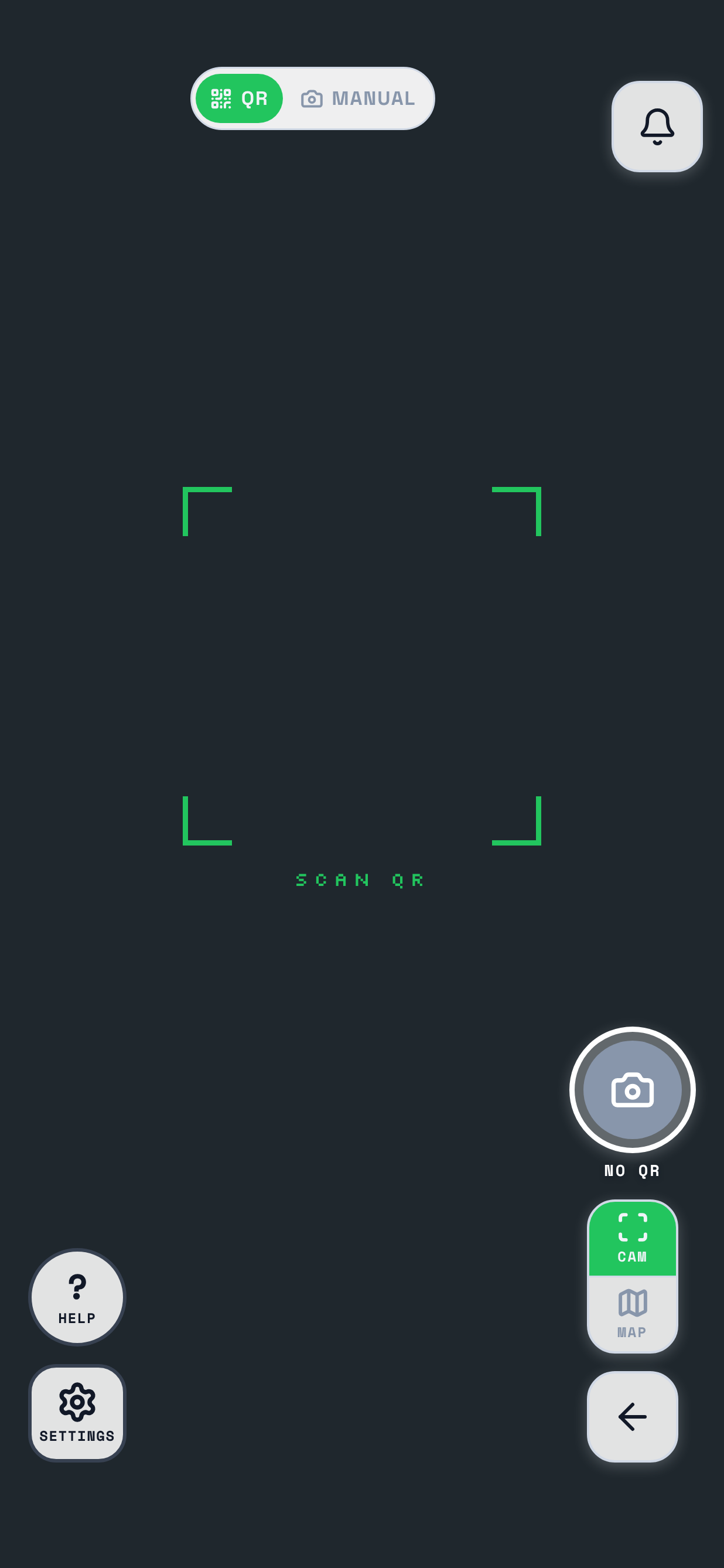
Open Settings, then Hub
The gear sits in the corner of the camera and the map. Settings opens on Profile, and Hub is the third of the four segments. Your crew is on that pane. Scroll past it to reach the two ways of adding somebody, and past those to the invitations you are waiting on.
Step 1 of 2
Step 2 of 2
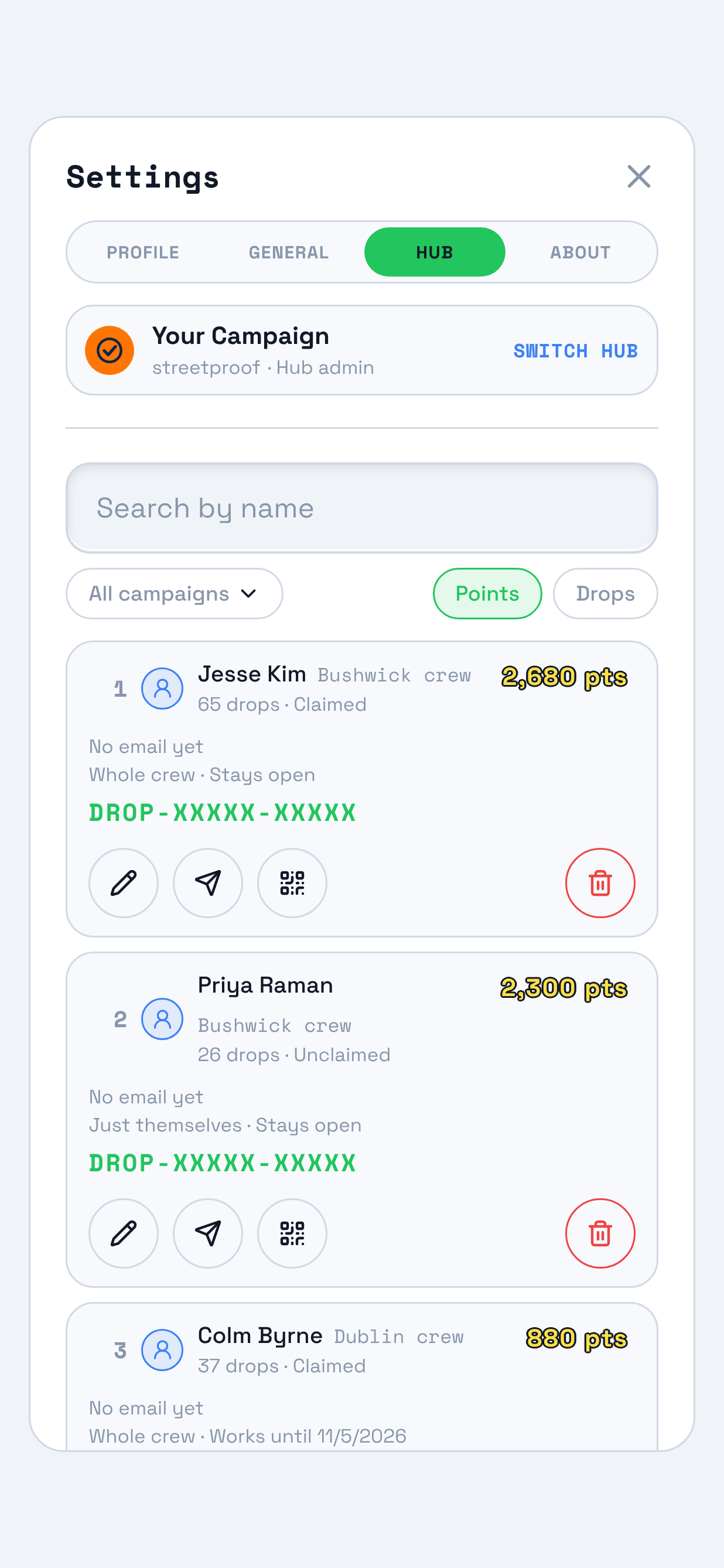
Rows are ordered by when each Drop code was made, newest first. - 02
Choose Invite by email or Drop code
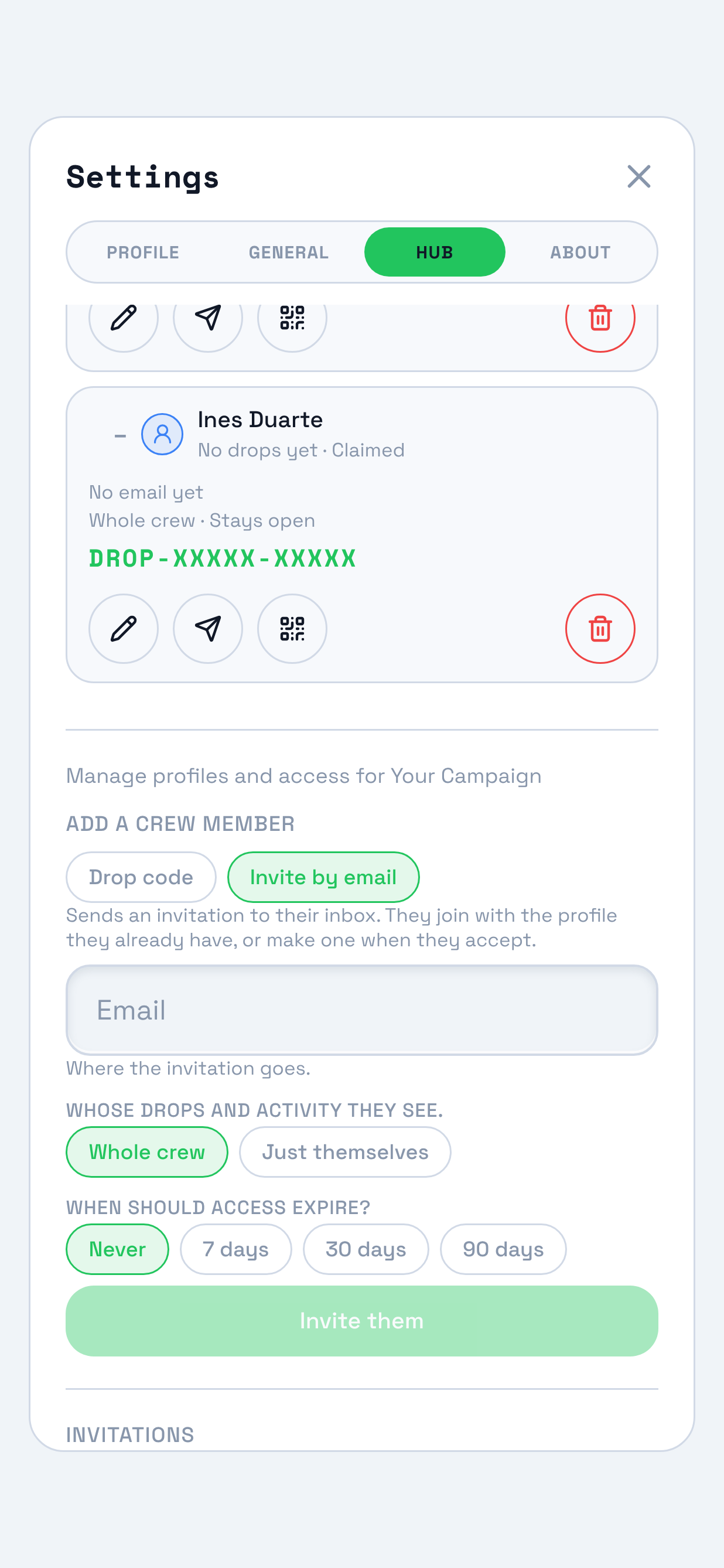
Two chips, each with a line under it saying what that way does. Your pick decides which form opens under them.
Step 1 of 2
Step 2 of 2
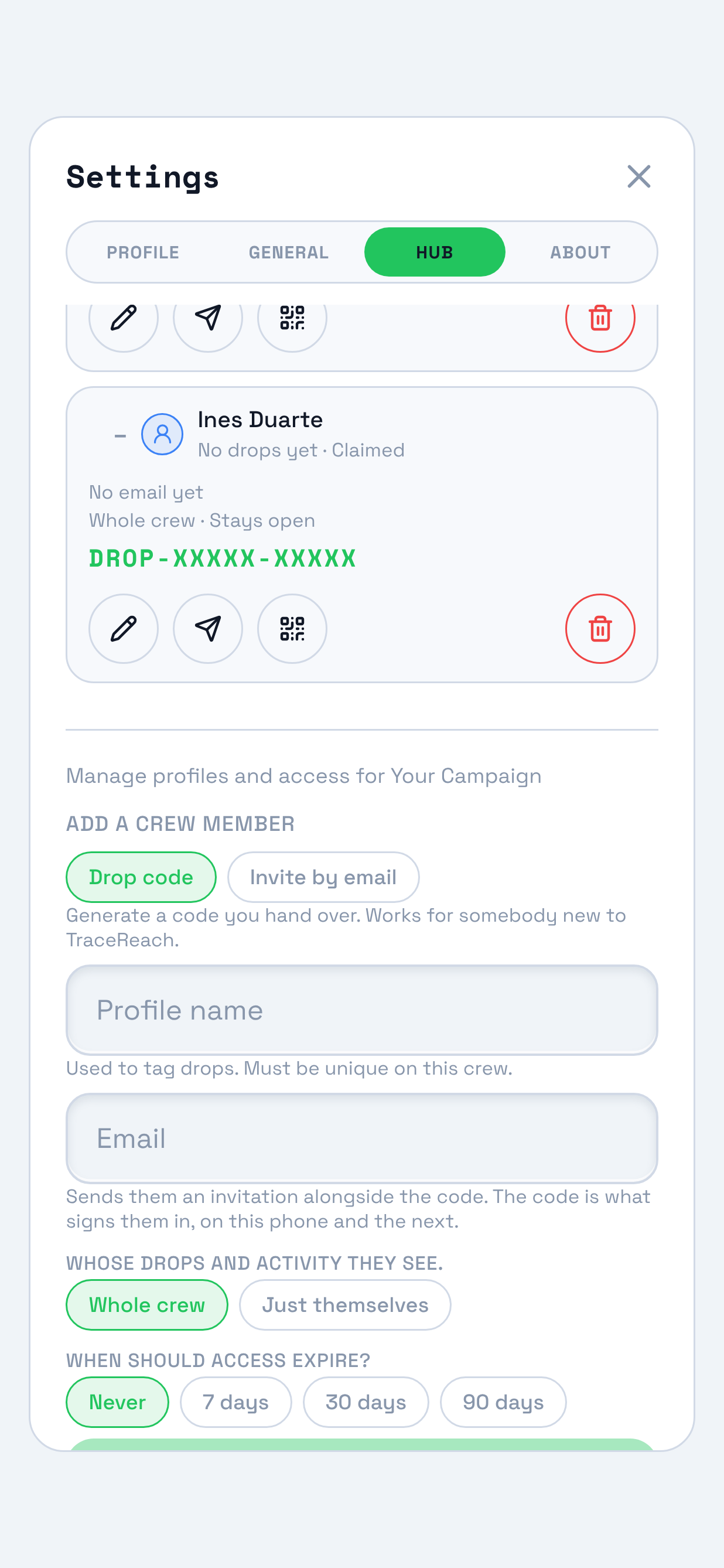
The pick changes the form under it. Drop code asks for a name; Invite by email does not. - 03
Fill in the invite form
The invite form asks for the address, and then for the same two settings the code form asks for: whose drops and activity they see, and when their access ends. So an invitee's access clock is set here, before they have accepted anything. Somebody already on TraceReach meets the invitation in the app as well as in their inbox.
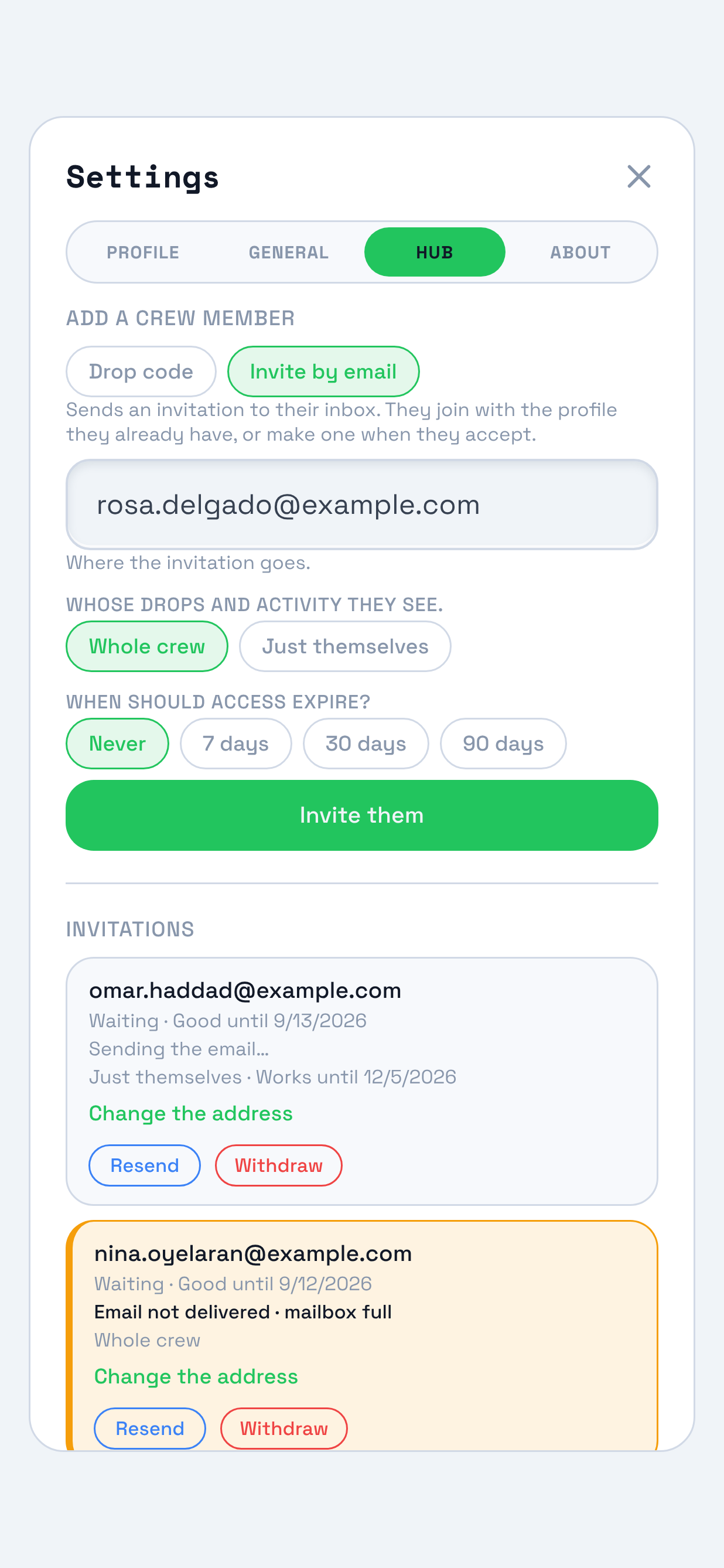
Their access clock is set on this form, before they accept. - 04
Read the invitation row
An invitation sits under Invitations until it is accepted, reading Waiting beside the date it is good until. The email's own state sits on the line below, so you can tell a person who has ignored an invitation from a person who never received one.
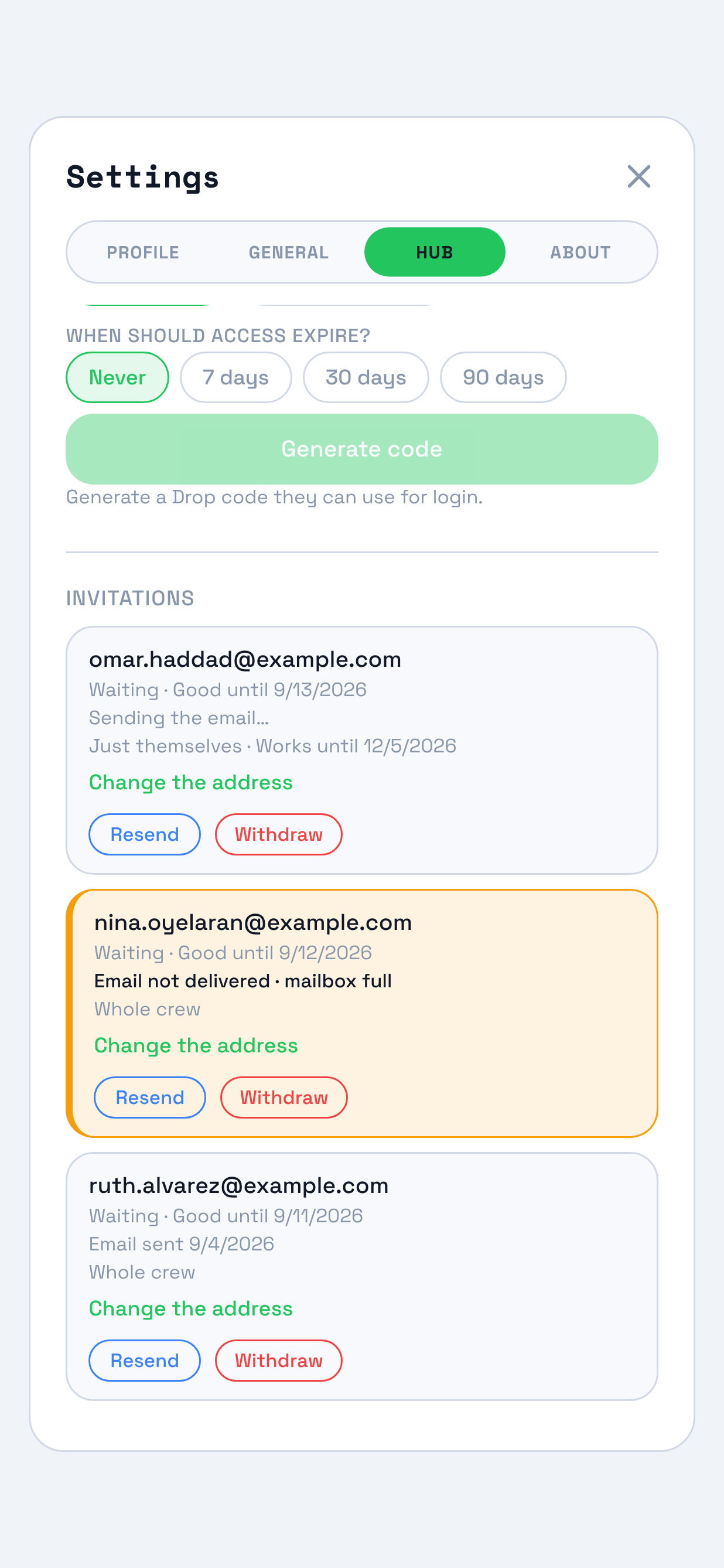
The first row carries both dates: Good until is the invitation, Works until is their access. - 05
Fill in the Drop-code form
A profile name is what tags their drops, and it has to be unique on your crew. Email is optional. Under those sit two rows of chips: whose drops and activity they see, whole crew or just themselves, and when access expires, Never or 7, 30 or 90 days. Both are yours to change later, on their row. Everybody you add here joins as crew, and making somebody a lead is a change you make afterwards, on their row.
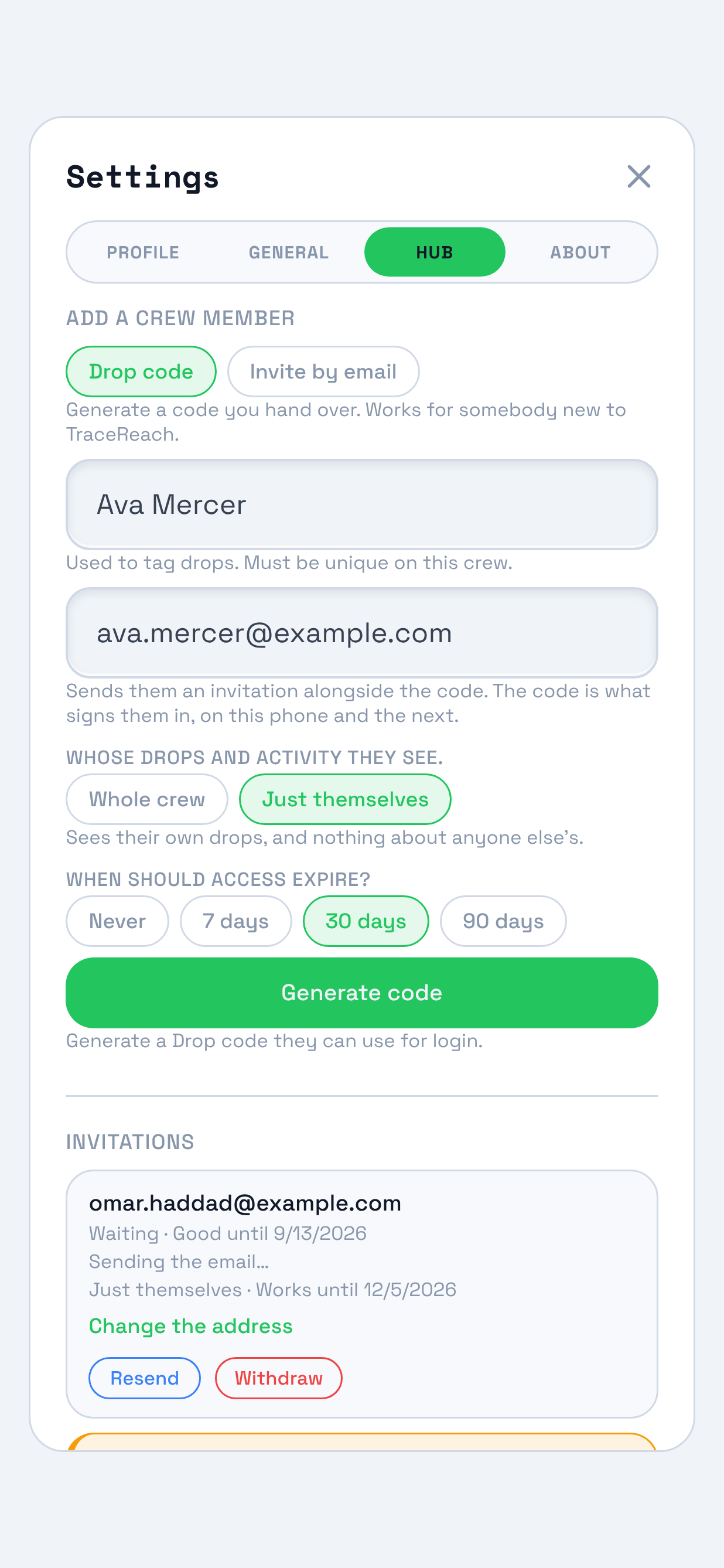
The hint under Email says what an address does: it sends an invitation, and the code is still what signs them in. - 06
Hand the code over
The code arrives on a card: their name, a QR, the code under it, and three controls. Copy link puts the claim link on your clipboard. Send invite hands your phone the link and the code as one message, which is how a code reaches a phone number. The third, Issue a Drop code, replaces the one on screen. Any of the three routes signs them in: the QR from their camera, the link from a message, or the code typed into the app. With no Drop app yet, the link opens in their browser and signs them in there. That page offers the app, and the code stays good for typing in later, until it expires.
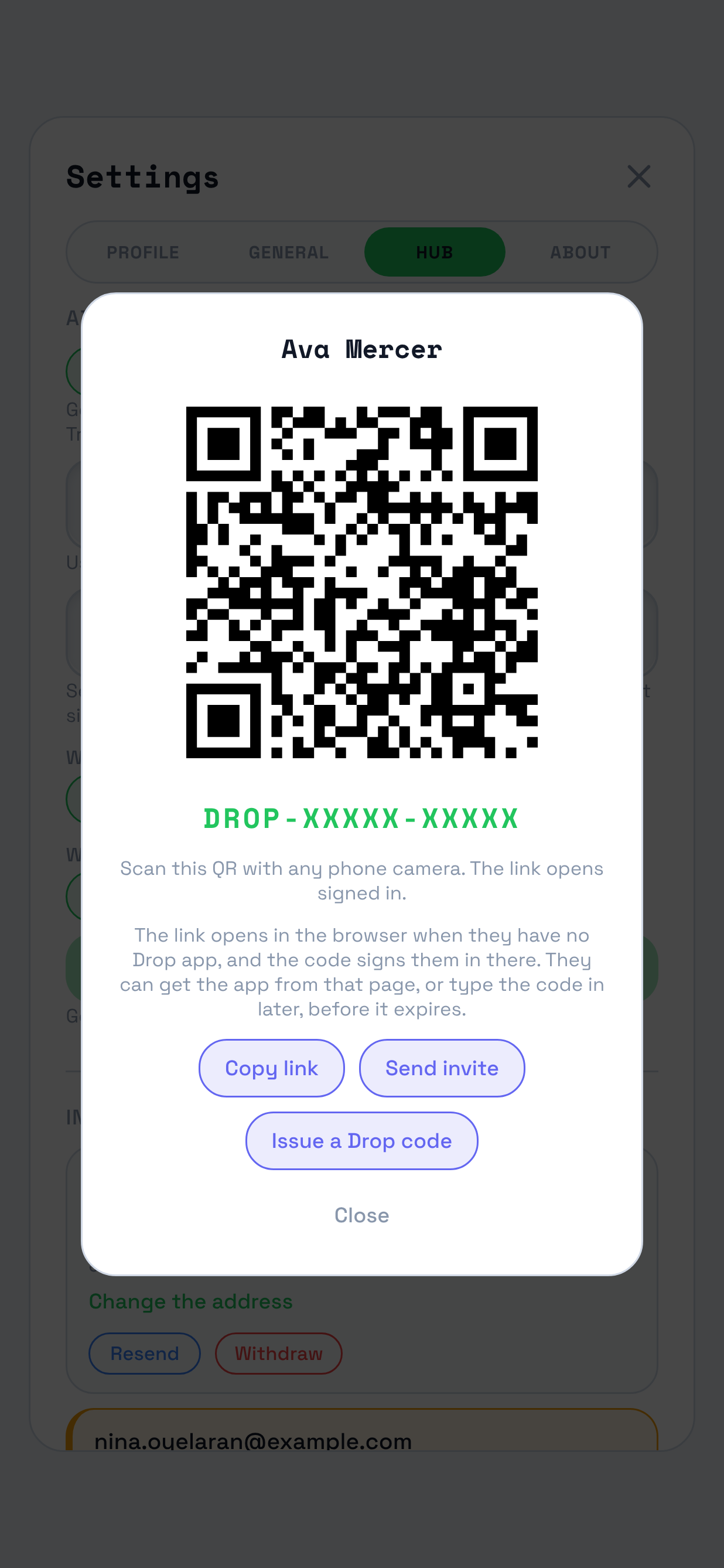
Pressing Issue a Drop code replaces the one on screen, and the replaced one stops working. - 07
They are on the roster already
A person you added shows up before they have signed in anywhere. The row reads Unclaimed until they sign in, and marks the address you typed as invited, not confirmed yet, until the person who owns that inbox confirms it.
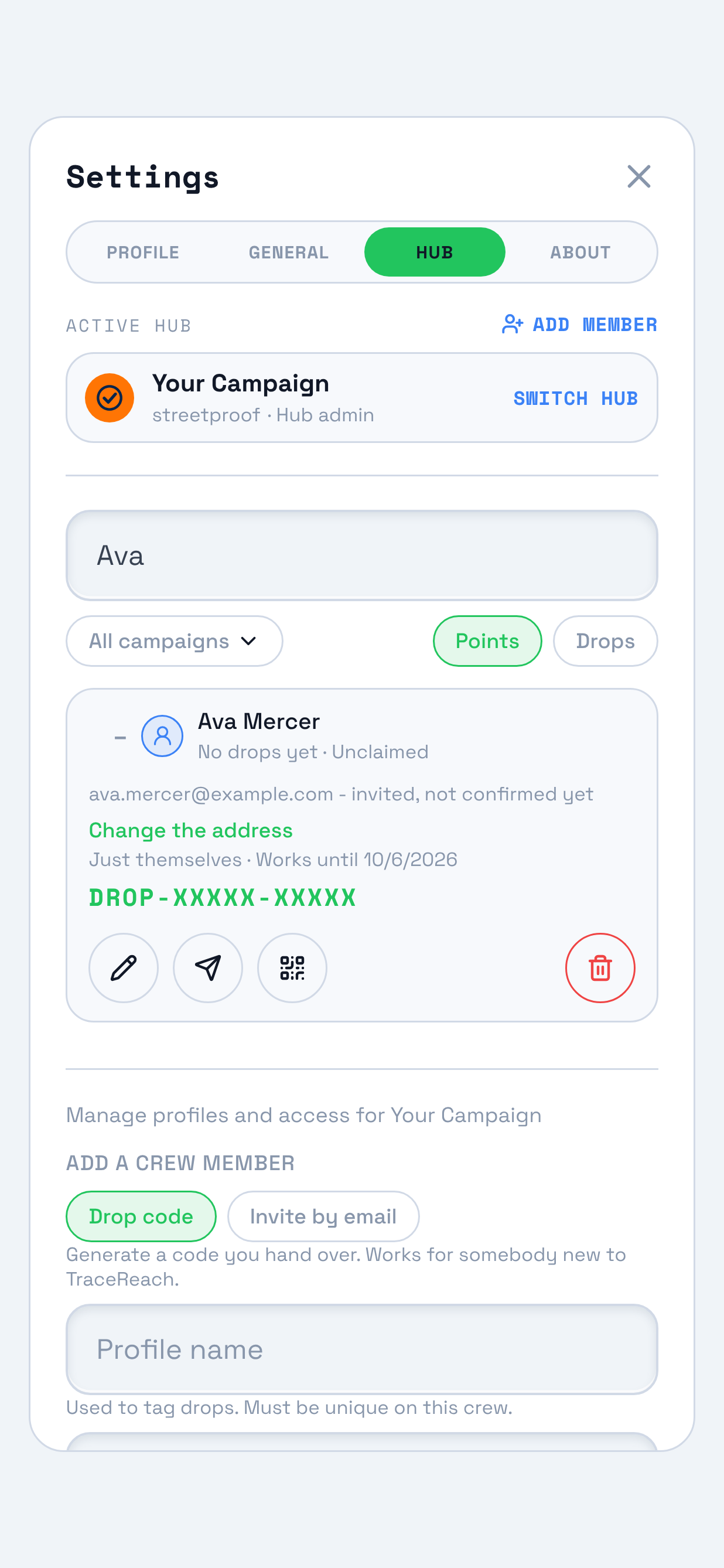
Change the address sits on the row, so a typo is fixable from here.
Questions from the first day
- Should I type their email on the Drop-code form?
-
Type it if you want an invitation to go out alongside the code. It does not put an address on their profile.
That invitation takes the code's own window rather than the 7 days an emailed one gets, because the form raises both together.
Typing an address here is an invitation, not a claim about who somebody is. The address becomes theirs when the person who owns that inbox confirms it, and until then the row shows it as invited, not confirmed yet.
- It says somebody already uses that email.
-
An address somebody already uses is refused, and the form offers Invite them.
A second profile for one person would split their history in two, so the invitation is the way through: they join with the profile they already have, and everything they have logged stays on it.
- Which date am I looking at?
-
Two dates can show for one person, and the row spells both of them out. Good until is the invitation. Works until is their access.
Good until
How long the invitation stays claimable
7 days from Invite by email, and 30 from an address typed on the Drop-code form, because that one takes the code's window. It stops when they accept, or when it lapses.
Works until
When their access to the hub ends
Set on either form when you add them: Never, or 7, 30 or 90 days. It applies once they have accepted, and a row you left on Never reads Stays open.
- I typed the wrong address.
-
Change the address on the invitation. It stays the same invitation with one address corrected, and the link that went to the wrong inbox stops working.
To stop an invitation altogether, withdraw it.
- What happens when an invitation runs out?
-
An unclaimed invitation stops working, and its row says so with the date.
Resend keeps it open at least another 7 days from the day you press it, and puts the invitation back in front of somebody who ignored it.
- What happens when a Drop code runs out?
-
A Drop code stops working after 30 days. Generate a new one for the same person: they are already on your roster, so nothing else has to be redone.
- What happens when somebody's access ends?
-
Their code and any open session stop working that day. Their drops and spots stay on the map, attributed to them.
- What does the email line on a row mean?
-
The line under an invitation is the email's own state, separate from the invitation's. It reads Sending the email, or Email sent with its date, or Email not delivered with the reason in the words of whoever refused it.
When nobody has answered, that line tells you which case you are in: the email went out and they have not acted, or it never arrived and the row says why.
- What does removing somebody take away?
-
Removing somebody ends their membership on that hub and stops that hub's live codes working for them.
Their drops and their spots stay on the map, still attributed to them.
Somebody on your crew needs a walkthrough?
TraceReach Drop plays walkthroughs on their own screen. They are named on Help, and Get the app covers installing and signing in.
Already working in Studio?
The same crew is on the Users page, under Crew, where one form takes a list of names and mints a code for each. The steps above follow TraceReach Drop, one person at a time.